Fewer Returns, More Sales: How to Add Size Charts in WooCommerce
Learn how to easily add a size chart to your WooCommerce product pages. Reduce returns and boost sales with our step-by-step guide. No coding required!
Have you ever wondered how many sales you lose because shoppers aren’t sure if an item will actually fit them?
When buying clothes or shoes online, a customer’s biggest worry is getting the right size. This uncertainty often leads to them closing the tab and looking for a store that provides clearer information, resulting in abandoned carts and lost sales for you.
I understand how frustrating it is to lose potential customers just because of sizing doubts. That’s why I’ve helped many store owners set up clear size guides on their product pages, which removes this doubt and gives customers the confidence to click ‘Add to Cart’.
In this guide, I’ll show you how to easily add a size chart to your WooCommerce store using three proven methods. By the end, you’ll have a system in place that reduces returns, boosts sales, and keeps your customers happy.
TL;DR: There are multiple ways to add a size chart to WooCommerce. If you are on a tight budget, you can use the free WPC Product Size Chart plugin. If you want to save time by importing pre-made sizing templates, I recommend Advanced Product Size Charts Pro. You can also use SeedProd to custom-design your product page layouts.
Why Add a Size Chart to Your WooCommerce Store?
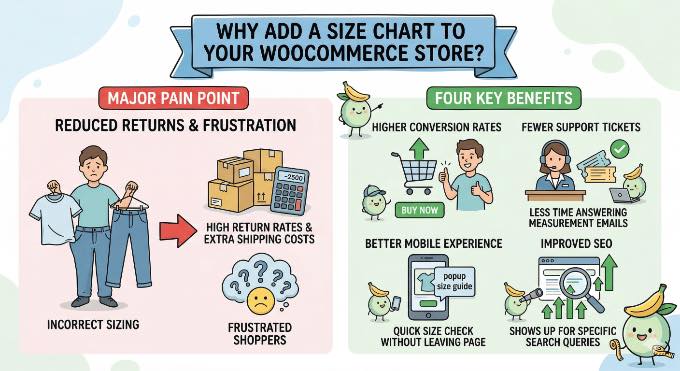
The biggest reason for high return rates in online stores is often incorrect sizing. When a customer receives an item that doesn’t fit, it leads to a frustrating experience for them and extra shipping costs for you.
By adding a clear size guide, you make sure your shoppers have all the information they need before they buy. This builds trust and helps people feel more confident about clicking the ‘Add to Cart’ button.
Beyond reducing returns, a professional size chart offers several technical benefits for your store:
- Higher Conversion Rates: Shoppers are much more likely to complete a purchase when they aren’t worried about the fit.
- Fewer Support Tickets: You won’t have to spend as much time answering emails from customers asking for specific measurements.
- Better Mobile Experience: Using a popup chart means mobile users can quickly check sizes without leaving the product page.
- Improved SEO: Detailed product information like measurements can help your store show up for more specific search queries.
Taking a few minutes to add a size chart is one of the easiest ways to build trust with your shoppers and protect your bottom line.
With that in mind, let’s look at the best ways to set this up on your site without writing any code.
Which Method is Right for You?
There are a few different ways to add sizing guides to your store, depending on your budget and how much design control you want. You can use the quick links below to jump to the method that best fits your needs:
- Method 1: Use a Free Plugin (Best for Tight Budgets) – I will use the free WPC Product Size Chart plugin. This is the best option if you need a simple, functional size table and want to use the standard WordPress editor to build it.
- Method 2: Use a Premium Plugin (Best for Growing Stores) – I will use Advanced Product Size Charts Pro. This is the best choice if you want access to pre-made templates and advanced rules for assigning charts to hundreds of products at once.
- Method 3: Use a Page Builder (Best for Custom Designs) – I will use SeedProd. This is the ultimate option if you want complete drag-and-drop control over how your entire WooCommerce product page looks.
Before you begin any of these methods, make sure you have an active WooCommerce store with at least a few products already added.
If you haven’t set this up yet, you can follow my step-by-step guide on WooCommerce Made Simple.
Method 1: Add a Size Chart Using a Free Plugin
If you are looking for a reliable, free way to add sizing tables, I recommend the WPC Product Size Chart for WooCommerce plugin. It is incredibly lightweight and very beginner-friendly.
First, you need to install and activate the plugin. If you need help, see our guide on how to install a WordPress plugin.
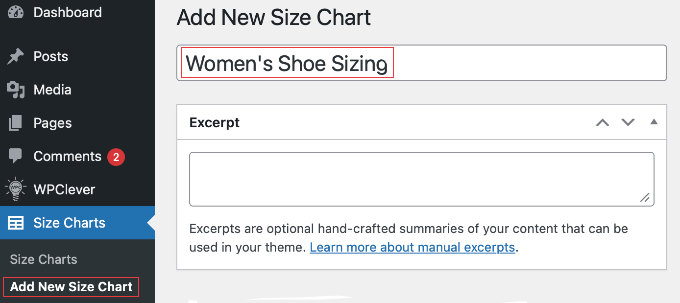
Once activated, go to Size Charts » Add New in your WordPress admin dashboard to create your first guide.
First, give your size chart a descriptive title (like ‘Women’s Shoe Sizing’).
Next, scroll down to the ‘Configuration’ box.
If your manufacturer gave you a sizing guide as a JPEG or PNG image, you can click the ‘Add Media’ button inside the ‘Above Text’ or ‘Under Text’ areas to upload your picture directly to the chart.
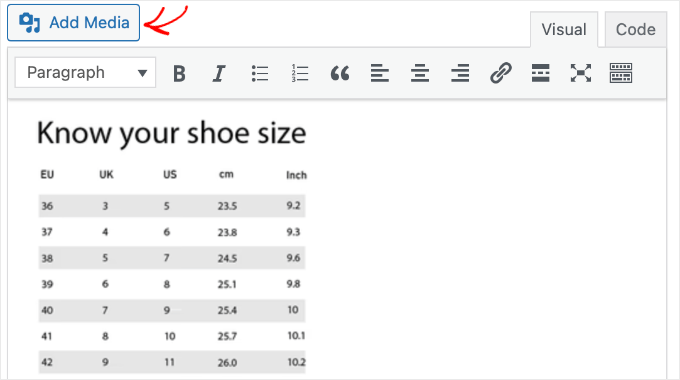
However, keep in mind that building a text-based table using the plugin’s grid is usually better for mobile shoppers, as it will automatically resize to fit smaller screens without making them pinch and zoom.
If you prefer to type out your measurements, look for the ‘Chart Table’ section right in the middle.
Here, you can add rows and columns to build your layout, and then click inside the fields to type in your sizing data.
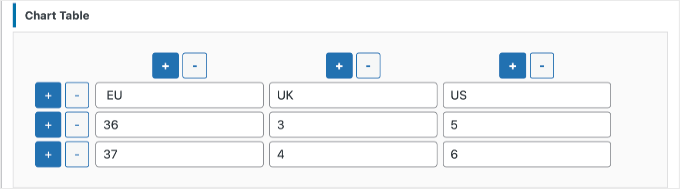
Finally, you need to tell the plugin where to display this chart. Look for the ‘Apply’ dropdown at the top of the Configuration box.
I highly recommend assigning your chart to specific product categories here so it shows up automatically, which will save you a ton of time.
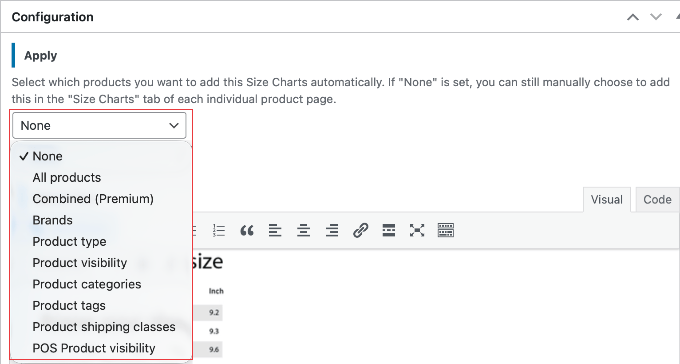
If you select ‘None’ from this dropdown, you will have to manually edit each individual WooCommerce product and assign the chart using the new ‘Size Charts’ tab located in the Product Data box.
When you are finished, click the ‘Publish’ button at the top of the screen.
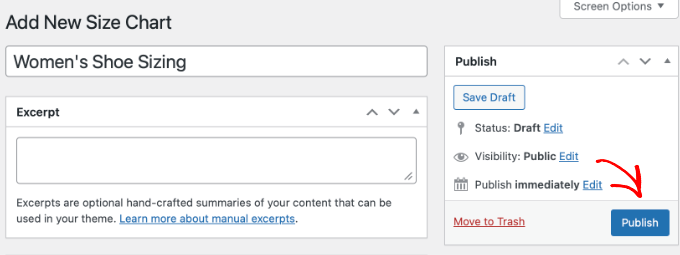
The plugin will automatically add a ‘Size Chart’ button to your designated products. When customers click this button, your measurement guide will open in a clean, informative popup.
Method 2: Add a Size Chart Using a Premium Plugin
While building tables manually works well for a few items, larger stores often need a faster workflow.
For advanced features like pre-made templates, and clean popup displays, I recommend using the premium Advanced Product Size Charts Pro plugin.
First, you need to purchase, install, and activate the Pro plugin. If you need help, see our guide on how to install a WordPress plugin.
Once the Pro version is active, navigate to Size Chart » All Size Charts in your WordPress admin dashboard.
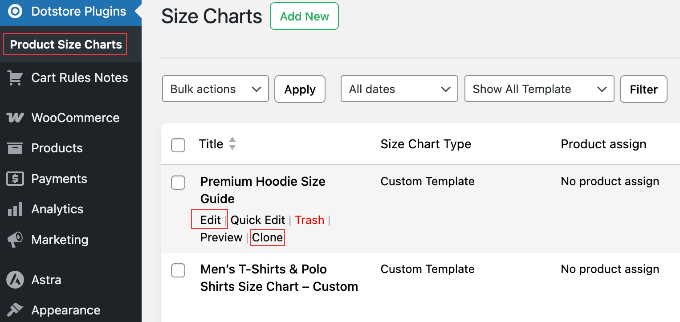
You will see a list of roughly 10 pre-made charts (like ‘Men’s T-Shirt’ and ‘Women’s Shoes’). These are your ready-made templates.
Instead of starting from scratch, find the template that closely matches your product type.
Hover over the title and click the ‘Edit’ link. This opens the chart editor with all the measurement data already populated.
Scroll down to the ‘Chart Table’ section, where you will see the measurement grid.
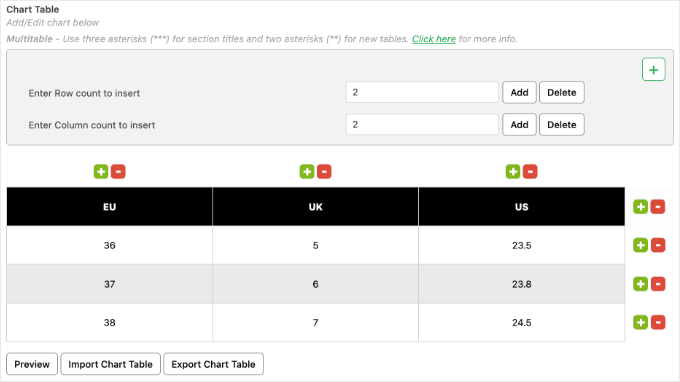
- To Edit: Double-click any cell to change the numbers or text to match your inventory.
- To Expand: Use the (+) buttons at the end of rows or columns to add new sizes (like XXL) or new measurement types (like ‘Sleeve Length’).
- To Clean Up: Click the ‘Trash’ icon on any unused rows to ensure they don’t show up as awkward blank spaces on your live site.
Expert Tip: When customizing your chart, make sure to delete any empty rows using the trash icon. Leaving blank rows in the editor often results in awkward blank spaces on your live product page, confusing shoppers.
Next, scroll down to the ‘Size Chart Settings’ section near the top of the page.
For the Size Chart Position, choose ‘Modal Popup’. This is the most popular professional choice.
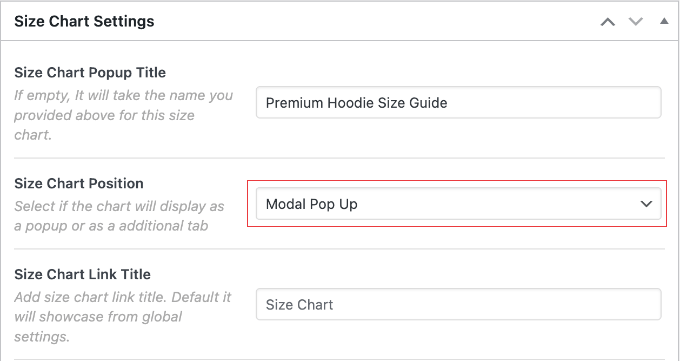
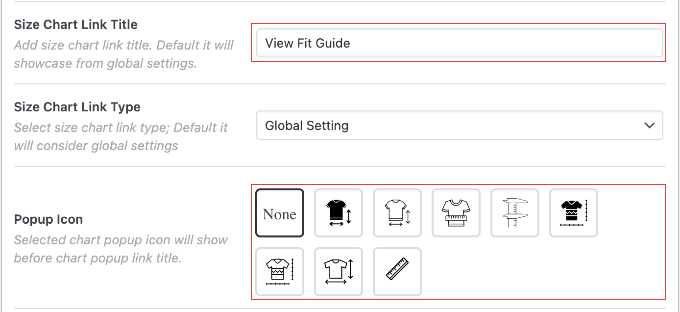
You can now use the ‘Size Chart Link Title’ field to change the actual button text (such as ‘View Fit Guide’).
You can also use the ‘Popup Icon’ dropdown to add a visual cue next to your link, and adjust the ‘Chart Table Font Size’ to ensure the text is easy to read on all devices.
Finally, you need to tell WooCommerce which products should display this specific chart.
Look at the right side of your screen, where you will see dedicated meta boxes for Assign Category, Assign Tag, Assign Attributes, and Assign Product.
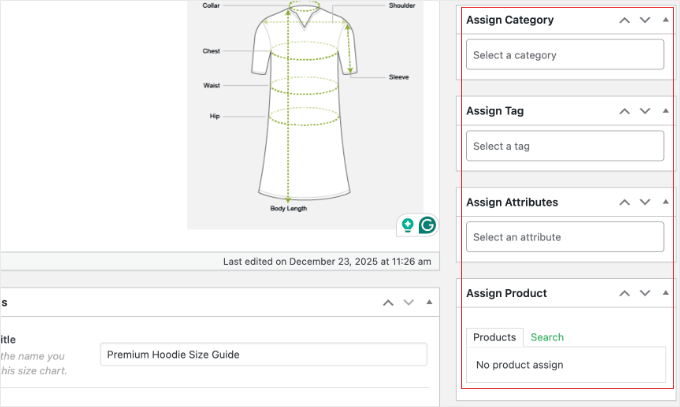
To save time, simply check the relevant boxes in the ‘Assign Category’ meta box (like ‘Shirts’ or ‘Shoes’). This automatically applies the chart to every item in that category.
If you have a unique item that fits differently than the rest of your inventory, you can use the ‘Assign Product’ box to apply the chart to just that one specific item.
When you are happy with how everything is set up, click the ‘Update’ or ‘Publish’ button on the right side of the screen. Your size chart is now live.
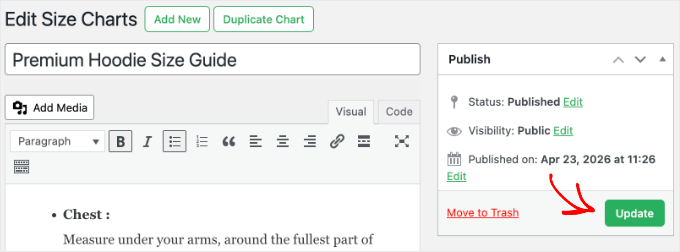
I highly recommend opening one of your product pages in a new tab to verify that the button appears in the right spot and the popup looks correct on both desktop and mobile.
Method 3: Add a Size Chart Using a Page Builder
If you want complete control over exactly where your size guide appears and how your entire product page looks, I highly recommend using the SeedProd Website Builder.
Using SeedProd will replace your current WordPress theme, so this method is best if you want to redesign your entire online store from the ground up.
This allows you to place your size chart exactly where it will convert best, like right under the price or inside a custom product tab.
Using SeedProd gives you the freedom to build a truly unique shopping experience.
If you want a more detailed walkthrough on setting up your custom store design, check out my guide on how to customize WooCommerce product pages (no code method).
Note: You will need a SeedProd Elite license to access the specific WooCommerce blocks and Website Builder features required for this method.
First, you need to install and activate the SeedProd plugin.
If you need help, see our guide on how to install a WordPress plugin. And since you purchased an Elite license, don’t forget to activate your license key on the SeedProd » Settings page.
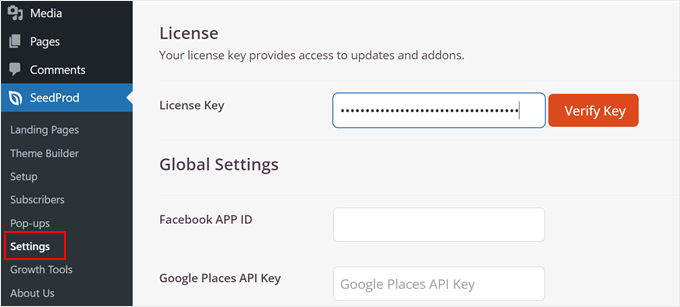
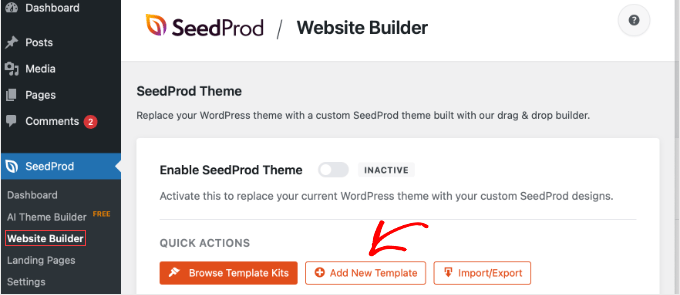
Next, go to SeedProd » Website Builder in your WordPress admin dashboard.
Note: You can ignore the ‘AI Theme Builder‘ menu for this tutorial, as we want the manual controls found here.
To create your size chart layout, click the ‘Add New Template’ button under the ‘Quick Actions’ section.
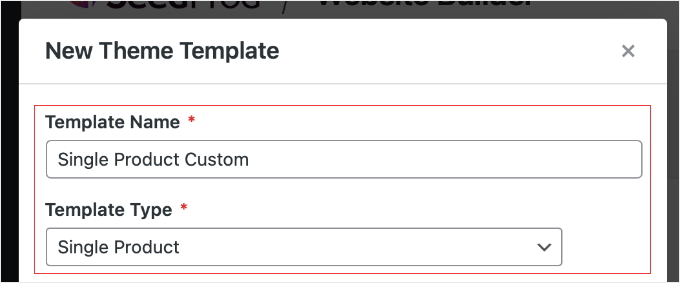
In the popup that appears, give your template a descriptive name (like ‘Single Product Custom’).
Then, from the ‘Type’ dropdown, select ‘Single Product’.
Next, you need to set your ‘Conditions’.
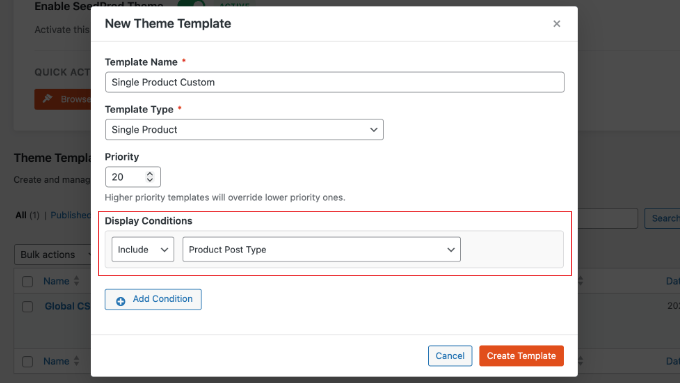
By default, SeedProd automatically sets this to ‘Include’ and ‘Product Post Type’. This means your new layout will show up on every single product in your store.
If that is what you want, simply click the ‘Save’ button.
However, if you only want this specific size chart to appear on certain items, you can easily change this.
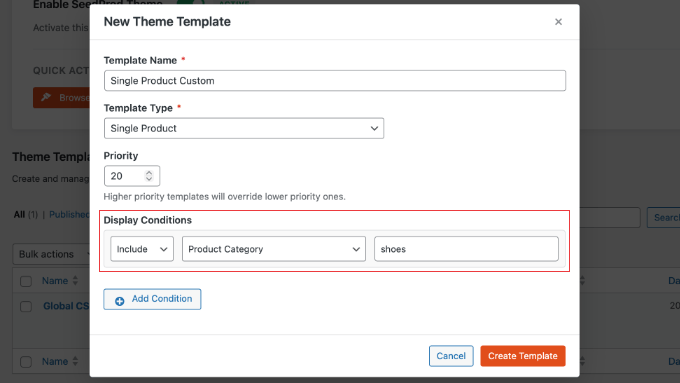
You need to click the dropdown menu, scroll down to the ‘WooCommerce’ section, and select ‘Product Category’.
You will need to carefully type the exact name or slug of your category (like ‘shirts’ or ‘shoes’) into the text box, and then click ‘Create Template’.
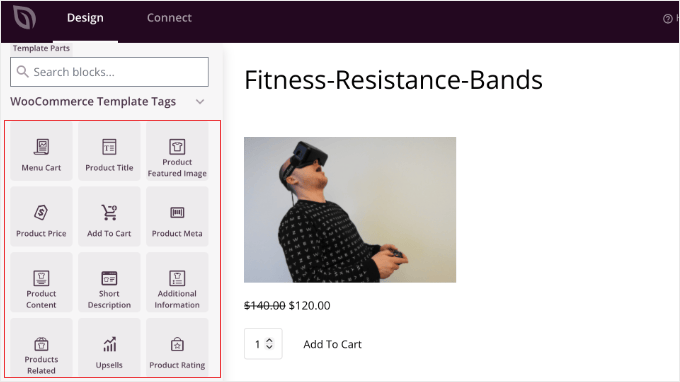
SeedProd will now open its visual drag-and-drop editor. On the left side of your screen, you will see a section for your WooCommerce blocks.
You can drag and drop essential blocks like the Product Image, Product Title, Product Price, and Add to Cart button directly onto your canvas to build your layout.
To add your sizing guide, you have three professional options to choose from:
- The Image Block: Drag an ‘Image’ block directly under the price and upload your size guide graphic.
- The Product Data Tabs Block: Drag this block into your layout. In the settings, add a new tab, rename it ‘Size Guide’, and type or paste your measurement table into the content area.
- The Accordion Block: Drag an ‘Accordion’ block and label it ‘Check Your Size’. This keeps the page clean and only shows the measurements when the customer clicks to expand it.
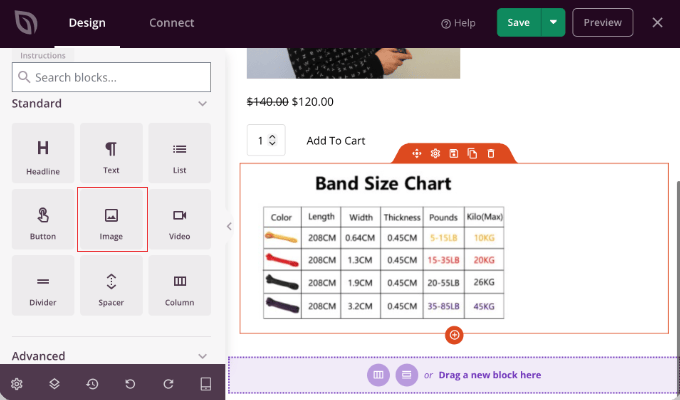
When you are happy with your custom product page design, click the ‘Save’ button in the top right corner of the editor.
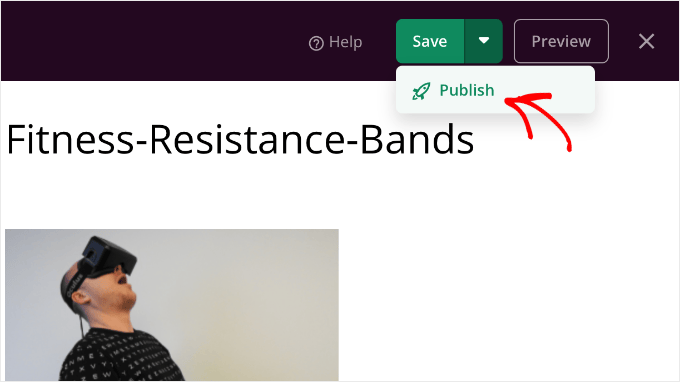
Next, click the dropdown arrow next to the save button and select ‘Publish’.
Finally, exit back to the SeedProd » Website Builder dashboard.
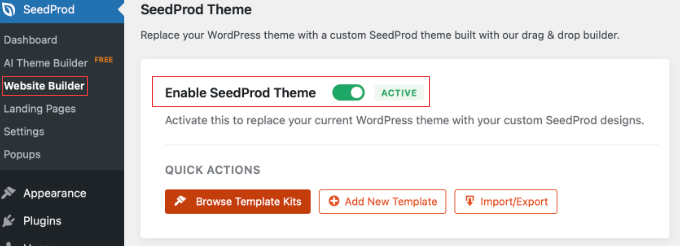
When you are ready, you must toggle the ‘Enable SeedProd Theme’ switch to ‘ON’ at the top of the page. If you skip this step, your custom design will not show up on your live store.
Important: Because this setting replaces your active WordPress theme with SeedProd, please ensure you have also created your ‘Header’ and ‘Footer’ templates in the Website Builder. If you don’t, your live site may lose its navigation menu!
For details, see our guide on how to create a custom WordPress theme with SeedProd.
Your custom product page and size guide are now live and ready for your shoppers.
Bonus Ways to Optimize Your WooCommerce Store
Adding a size chart is a great first step, but there are other ways to make your store more successful.
Using the right tools can help you turn more visitors into customers:
- Track Your eCommerce Analytics: To see exactly which products are selling best, I recommend using MonsterInsights. It is the best Google Analytics plugin for WordPress and connects to WooCommerce for conversion tracking with just a few clicks.
- Build Social Proof: To show real-time “hot streak” notifications of recent purchases, I recommend using TrustPulse. This builds even more confidence alongside your size chart. You can see how to set it up in my guide on how to use FOMO on your WordPress site.
- Speed Up Your Checkout: If you want to stop cart abandonment, you can use FunnelKit to create a fast, optimized slide-out cart. I walk you through the process in my guide on how to easily add a sliding side cart in WooCommerce.
FAQs About WooCommerce Size Charts
I’ve helped many store owners set up their measurement guides. Here are some of the most common questions I get about adding a size chart in WooCommerce.
1. How do I add a size chart in WooCommerce for free?
You can add a size chart for free by using the WPC Product Size Chart plugin. It includes a straightforward table builder and lets you easily use the ‘Add Media’ button to upload sizing images to your product pages for free.
2. Can I show a different WooCommerce size chart for each product category?
Yes, you can assign different charts to specific categories using both the free WPC Product Size Chart plugin and the Advanced Product Size Charts Pro plugin. This allows you to have one guide for your ‘T-Shirts’ category and a completely different one for ‘Shoes.’
3. Will a size chart plugin slow down my WooCommerce site?
No, well-coded size chart tools are very lightweight. I’ve found that they only load the necessary scripts when a user views the product or clicks the popup button, so it won’t hurt your WooCommerce page loading speed.
4. Does WooCommerce have a built-in size chart feature?
WooCommerce does not have a built-in size chart feature. While you can use WooCommerce product attributes to list measurements, using a dedicated tool like the plugins mentioned above is much better for creating a visual table that is easy for customers to read.
5. How do I upload a size chart image in WooCommerce?
If you already have a pre-made size chart saved as an image (like a JPEG or PNG) from your manufacturer, you don’t have to build a new table from scratch. You can use SeedProd to add an Image block directly to your product page layout, or you can use the ‘Add Media’ button inside the free WPC Product Size Chart configuration settings.
Just remember that static images can sometimes be hard to read on mobile phones. If you do upload an image, don’t forget to add Alt Text so search engines and visually impaired shoppers can still understand your sizing information.
6. What data should I include in my size charts?
For apparel, common measurements include bust, waist, hips, and inseam. For shoes, foot length is crucial. Always include both imperial (inches) and metric (cm) units if your audience is international. Consider adding a ‘How to Measure’ guide or diagrams to help customers get accurate readings.
7. How do size charts help reduce returns in my store?
Size charts clearly communicate product measurements, which helps customers choose the correct size the first time. This significantly reduces the chances of them receiving an item that doesn’t fit, which in turn lowers your return rates and saves you money on shipping and processing.
8. How do I add selectable sizes (like Small, Medium, Large) to my products?
There are two different ways to add functional sizes to your WooCommerce store, depending on what you want the customer to do:
- To select a size for purchase: If you want to add a dropdown menu on your product page so a customer can choose ‘Medium’ before clicking Add to Cart, you need to use built-in WooCommerce product attributes and variations.
- To browse the store by size: If you want an Amazon-style sidebar where customers can check a ‘Medium’ box to only see medium-sized items across your whole catalog, you need to use a product filter plugin like WPFilters.
To set up functional sizes, check out our complete guides on how to add product attributes and how to set up product filters.
Additional Resources for Online Stores
I hope these methods help you create a seamless shopping experience for your customers.
If you’re ready to take the next step in growing your online business, I recommend exploring some of my other articles below.
- Best WooCommerce Plugins for Your Store – This is my expert pick of the top tools to add more features and boost your sales.
- How to Add Product Tags, Attributes, and Categories to WooCommerce – If you don’t want to use a plugin for every product, this guide shows you how to use the built-in WooCommerce settings to list sizes and colors.
- WooCommerce Made Simple: Proven Steps to Launch Your Store Today – If you are just starting out, this step-by-step guide will make sure your store settings are configured correctly from day one.
- How to Create a WooCommerce Popup to Increase Sales – Using popups for special offers is one of the best ways to stop people from leaving your site.
If you liked this article, then please subscribe to our YouTube Channel for WordPress video tutorials. You can also find us on Twitter and Facebook.